A child’s tablet should do more than light up when tapped. It should make reading, practice, and creative play easier, while helping adults guide what happens on screen. Common Sense Media’s 2021 Census found that U.S. children ages 0–8 averaged 2 hours and 24 minutes of screen media daily, across devices and content. That figure is not tablet-only, but it shows why thoughtful choices matter.
What features should I look for in a tablet for kids’ learning? Start with the child, not the spec sheet. A clear display, sturdy case, long battery life, and simple controls matter when a tablet travels from the kitchen table to the car seat. So does age-appropriate content. Parental controls can help set boundaries, but they cannot replace a grown-up’s judgment. Some apps look educational and still offer little meaningful practice.
The evidence deserves a careful read. UNESCO’s 2023 Global Education Monitoring Report notes that education technology can support learning, but results depend on how it is used and the context. A tablet is a tool, not a teacher. Small details count: Can a child open an ebook without help? Can an adult limit purchases and manage screen time? This guide examines seven features that can make learning more accessible and safer. No device gets every choice right, and families may weigh durability, price, and learning needs differently.
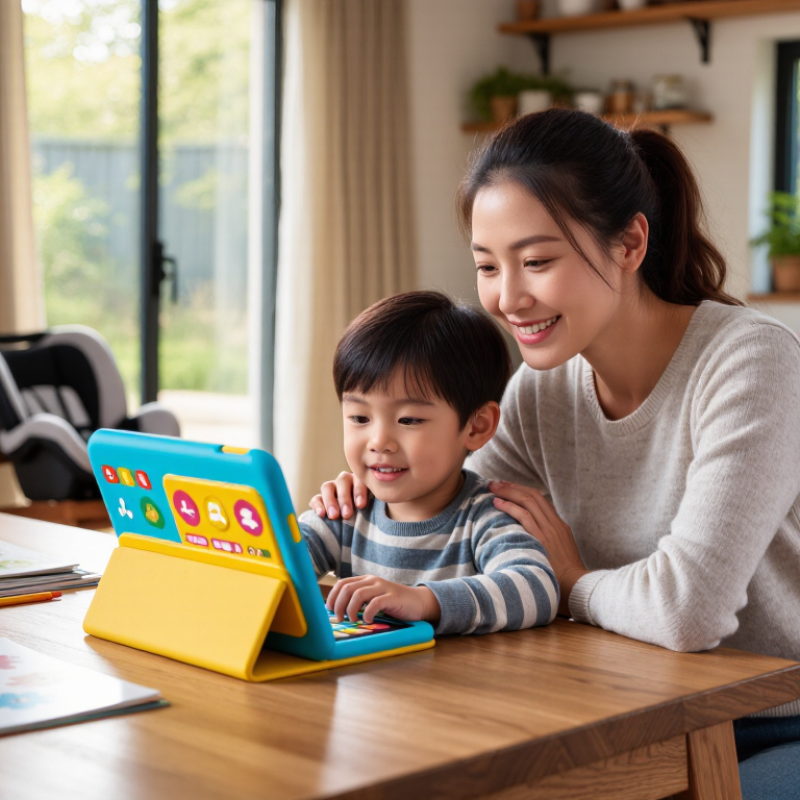
A child’s age offers a useful starting point, but attention span, reading ability, and confidence matter just as much. A preschooler may benefit from large icons, simple audio instructions, and short activities with clear stopping points. An older child might need a keyboard, drawing tools, or apps for independent reading and school projects. Look for adjustable difficulty, so the tablet can grow with changing skills rather than feel too easy by next year.
Think about the learning goal before comparing features. For handwriting practice, a responsive stylus and a screen that can rest flat may help. For reading, check that text size adjusts and narration can be turned off or on. For shared lessons, a front-facing camera and reliable volume controls may be useful. Parental controls should make it easy to set time limits and review downloaded content. Still, no feature guarantees focused learning. A bright screen can distract, even when the app is educational.
Tips: Watch your child use a tablet for ten minutes. Notice when they need help, lose interest, or lean close to the screen. Choose one or two priorities, not every feature. Reassess after a few weeks; your first choice may not be perfect.
A comfortable screen should be easy to read without forcing a child to lean close. Look for adjustable brightness, clear text, and a matte or low-glare finish that works near a window. Small details matter. A screen that looks bright in a shop may feel harsh in a dim bedroom, so check it in the settings where your child will actually use it. A medium-sized display can make pictures and letters easier to see, but a larger tablet may be heavier for small hands. Try it in person when possible.
Controls should feel predictable, not fiddly. A touchscreen should respond to light taps, while physical volume buttons should be easy to find without interrupting a lesson. Check that a child can pause audio, adjust sound, and return to the home screen without repeated help. A sturdy case and a built-in stand can reduce awkward gripping during longer activities. That said, no screen setting guarantees comfortable use for every child. Watch for squinting, frequent posture changes, or frustration, and adjust the brightness, font size, or activity length. Some controls still take practice.
Educational apps are most useful when they teach one clear skill at a time. Look for phonics activities that let children hear a sound, trace its letter, and try again without pressure. Early math apps should use familiar objects, such as buttons or fruit, before introducing abstract sums. Drawing, puzzles, and read-aloud stories can add variety. Variety matters.
Good apps adjust difficulty gently and explain mistakes in child-friendly language. A parent should be able to review progress without interpreting a pile of scores. Check that activities suit the child’s age, offer readable text, and avoid distracting ads or unnecessary purchases. I would not judge an app by bright graphics alone. Some beautiful apps offer little practice, and even a strong lesson can lose a child’s interest after repeated use.
Offline access is valuable during travel, in waiting rooms, or where Wi-Fi is unreliable. Test downloaded lessons before leaving home; some apps still need a connection to open certain features. Check available storage, too, because videos and audio stories can fill it quickly. Progress may not sync until the tablet reconnects, so clarify how that works. A small test helps. Try airplane mode and open the saved reading lesson, puzzle, and audio. If they work smoothly, the tablet is more dependable away from home.
Parental controls help turn a kids’ learning tablet into a more predictable space. Caregivers can choose age-appropriate content, approve downloads, and limit access to distracting apps. A child who opens the tablet for a spelling game should not be pulled toward unrelated videos five minutes later. Simple settings can reduce that risk, though filters are not perfect.
Useful controls include adjustable screen-time limits, bedtime schedules, separate child profiles, and clear activity reports. Set limits around your family’s routine, not an arbitrary number. For example, a short session before dinner may work better than unrestricted evening use. Explain the rules, too. Children are more likely to cooperate when they understand why a game closes. Still, strict controls can sometimes block a genuinely useful app; check settings together and revise them when needed.
Tips: Test the controls before handing over the tablet. Set a passcode, review approved apps, and try the bedtime lock yourself. Keep the device nearby during early use, then check in regularly rather than relying on reports alone. Ask your child what felt confusing or unfair. Small adjustments matter.
A learning tablet can spend more time in a backpack than on a desk. It may be dropped beside a chair, pressed under a notebook, or handled with sticky fingers. A shock-resistant case and reinforced corners help protect against everyday knocks, but they do not make a device indestructible. Check whether the screen sits slightly below the case edge, where it is less exposed to direct impact. Small details matter. No rating can replace careful handling, and even careful families may find that out the hard way.
Battery life affects whether lessons fit into real routines. A tablet that needs charging halfway through a car ride can interrupt a reading activity or leave a child waiting. Compare stated battery life with independent testing when available, since brightness, video, and Wi-Fi use can shorten runtime. A simple charging indicator is useful, too. That helps.
Storage matters when lessons need to work without a reliable internet connection. Downloaded books, videos, and learning apps can fill space faster than expected, while the operating system also uses part of the advertised capacity. Check the usable storage and whether it can be expanded safely. More space is convenient, but a child may still need help managing downloads. Parents often overlook this until a new lesson will not install.
| Feature | Practical Buying Benchmark | Why It Matters | What to Check |
|---|---|---|---|
| Durability and Protection | Look for a sturdy case, reinforced corners, and a screen designed for everyday handling. Prefer products with clearly stated drop-test conditions rather than an unsupported “tough” claim. | Children may drop or bump a tablet during normal use. Better protection can reduce the chance of damage and help the device last longer. | Check whether a protective case is included, whether the screen is covered by a warranty, and the height and surface used in any published drop test. |
| Battery Life | A useful target is about 8 hours or more of advertised mixed-use battery life; actual results depend on screen brightness, apps, Wi-Fi, and battery age. | Longer runtime is convenient for schoolwork, travel, and shared family use, with fewer interruptions to recharge. | Compare independent mixed-use tests where available. Check charging time and whether the charger is included. |
| Storage Capacity | Consider 32 GB as a practical starting point, or more if the child will download videos, games, books, or learning apps for offline use. | Apps and downloads use space, and the operating system also occupies some storage. Low free space can make updates and new downloads difficult. | Check usable storage after system software, whether a memory card is supported, and whether downloaded content can be stored on it. |
| Parental Controls | Choose controls that allow adult-managed profiles, screen-time limits, content restrictions, and approval of app downloads. | These tools help caregivers tailor access to a child’s age and routines while managing purchases and online activity. | Review which controls work on the device, whether they require a separate account or subscription, and how easy they are to adjust. |
| Display and Eye Comfort | A screen around 8–10 inches is a common balance between portability and readability. Look for adjustable brightness and a resolution that keeps text clear at normal viewing distance. | A readable display can make lessons, e-books, and video more comfortable to use without requiring a large, heavy device. | Check screen size, resolution, brightness adjustment, and whether text size can be changed. Encourage regular breaks during extended use. |
| Age-Appropriate Learning Content | Look for apps or learning resources suited to the child’s age, reading level, and interests, with clear information about costs and offline access. | Content that fits a child’s level is more likely to support focused practice and independent exploration. | Check app compatibility, in-app purchase settings, subscription terms, accessibility options, and whether content works without an internet connection. |
| Connectivity and Updates | Wi-Fi is sufficient for many home-learning needs. Choose a device with a published software-support policy and enough free storage for updates. | Internet access may be needed for lessons and app downloads, while security and software updates help keep the device current. | Confirm Wi-Fi compatibility, update frequency or support period, and whether essential learning features remain available offline. |
Note: Benchmarks are practical comparison guidelines, not guarantees. Battery performance, usable storage, durability, and available features vary by device and use.
Age is only a starting point. Watch your child use one for ten minutes; note when they need help or lose interest. Choose adjustable difficulty.
Large icons, audio directions, and short activities with clear stopping points can help. Keep sessions manageable.
Adjustable text size and optional narration support reading. Older children may benefit from a keyboard, drawing tools, or reading apps.
Look for clear text, adjustable brightness, and reduced glare. Test it near a window and in a dim room. Small details matter.
Light-touch response, reachable volume buttons, and simple pause controls reduce interruptions. A sturdy case or stand can ease gripping. Some controls take practice.
Pick apps focused on one skill, such as tracing letters or counting fruit. Gentle difficulty changes and clear explanations matter more than bright graphics.
They help during travel or when Wi-Fi is unreliable. Download a lesson, switch on airplane mode, and open it before leaving. Test it first.
Set time limits and review downloaded content. Check for squinting, poor posture, or frustration; adjust font size or activity length. My first choice may not be perfect.
Choosing the right learning tablet starts with matching its content and capabilities to a child’s age, interests, and learning goals. What features should I look for in a tablet for kids’ learning? Consider a comfortable screen, simple controls, and educational apps that encourage reading, creativity, problem-solving, and age-appropriate exploration. Offline access can also keep useful activities available when an internet connection is limited.
A good tablet should support safe, focused use through clear parental controls for screen time, content, and app access. Practical details matter, too: a durable design can handle everyday use, while dependable battery life supports learning on the go. Sufficient storage helps accommodate apps and learning materials without constant cleanup. Together, these features make it easier to choose a device that fits a child’s routine and encourages balanced, purposeful learning.

Elite Smartphone